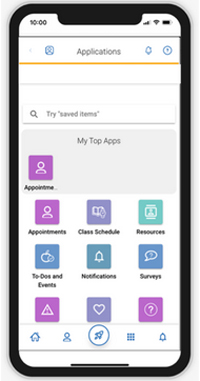
Radford University
Student Resources
Your Guide to Navigate360
What is Navigate360?
Navigate 360 is Radford University’s coordinated care network that allows students to connect with different services on campus. You can access services for HSC Advising, Faculty Advising, Tutoring and Writing Assistance, Career and Talent Development, Veteran Services and Graduate Affairs.
Where can I access Navigate360?
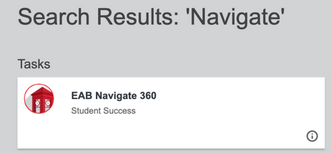
- You can also download the Navigate Student Mobile App on your phone to access Navigate360.
I am trying to schedule an appointment with an advisor, but I cannot find them in Navigate360. What should I do?
Academic Advisors have multiple ways for you to contact them. Scheduling an appointment with an advisor is one way of connecting with your assigned advising team for assistance.
If you are undergraduate student and you cannot find your assigned academic advisor, this means your assigned advisor does not have appointment availability.
Here are other ways to connect with your academic advisor:
- Email your assigned advisor: You are aways welcome to reach out via email to your advisor for assistance. They may be able to assist via email, invite you to drop-ins, or schedule an appointment through them. You can refer to the Academic Advising website for your advisors contact information.
- Contact the Highlander Success Center - Academic Advising: You can always call the Highlander Success Center Academic Advising at 540-831-2139.
Navigate 360 currently does not support advising appointments for graduate studies. If you are a graduate student, please reach out directly to your faculty advisor.
I am a prospective or newly admitted student. Can I schedule an appointment in Navigate360?
Navigate360 (and its services) is available only to deposited and currently enrolled, matriculated students. If you are a prospective student with questions about attending or getting started at Radford University, please contact Radford University Admissions.
Who do I contact if I encounter a problem with Navigate360?
- For advising help, please contact your academic advisor. Please review the Academic Advising website for contact information for your advisor.
- For login assistance, please contact the IT Help Desk.
- If you have feedback about the app or if content does not appear as expected, please contact our Navigate360 team at navigate@radford.edu.
I made a change to my class schedule. When will it update in Navigate360?
Your class schedule and any other changes in Navigate360 refreshes once per day. Check your class schedule in Navigate360 the following business day to review your updated schedule.
Start Using the Navigate360 Student Mobile App
How do I install the Navigate Student App and log in?
- Download the app to your iPhone or Android phone from your phone’s app store.
- Use the following links to download the app or search for “Navigate Student” in your phone’s app store.
If you do not have a compatible phone, you may access the Navigate Student App on your computer through the Desktop Login.
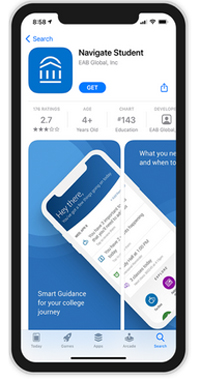
Once the app has finished downloading to your phone, open it. Select the “Type here to search” field to continue.
You will only need to complete this step the first time you open the app.
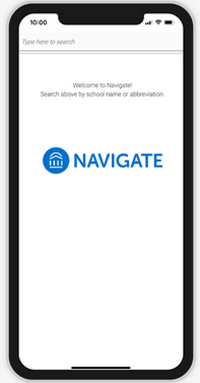
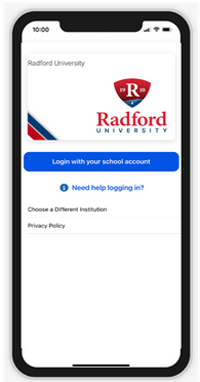
In the search field, enter “Radford University”. An image of the university logo will appear. Click “Login with your school account”.
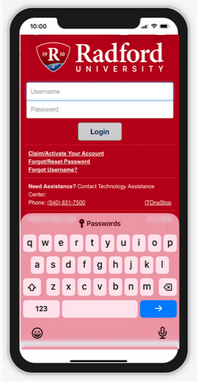
Login using your Radford University credentials, username and password.
You will only have to select the university and enter your account information the first time you use the app. The next time you open the app, you will skip this step.
If your account information does not work, please contact the IT Help Desk for Login assistance.
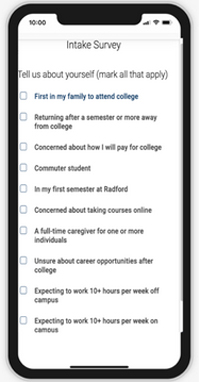
The first time you log in, you will need to complete an Intake Survey. Complete the survey to continue.
The survey has five questions and you may select as many answers as apply to you for each question. These answers will help us personalize your app experience.
Your home page will appear.
If you have any pending to-dos or holds, they will appear at the top of this page. Select the buttons to use different features of the app.
The next time you open the app you will see the home screen automatically and will not need to log in again.