Radford University
Faculty and Staff Resources
Navigate360 FAQs and Support
What is the best way to access Navigate360?
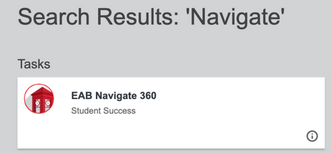
How do I get access to Navigate360 for myself or others in my office?
To request access, you need to complete the Access Request Form found in OneCampus. Once submitted, your request will be reviewed to determine the appropriate level of access in Navigate360.
How do I access the training site?
How do I sync my calendar and establish my availability?
EAB Navigate integrates with Gmail and Outlook calendars. As you block off time in your email calendar, your availability is automatically updated, preventing students from scheduling during those times.
Once you have calendar sync, establish your own specific availability based on your
location and services (reasons for appointments). We recommend including the following:
- Availability - Active Forever
- Check the box for adding availability to your Personal Availability Link (PAL)
- Select Availability type of at least Appointments and Campaigns
- Include all services you want to be available for in your location and care unit
- For more information on setting up your availability, please visit the Help Center about availability. If there are services or locations not available when establishing your availability, please email navigate@radford.edu and we will ensure you have the correct roles and permissions.
As your calendar is synced and your availability is set up, details from your professional calendar are indicated as “busy” blocked off time within Navigate.
How do I set my user preferences?
You have the option to set user preferences that will be saved each time you log into
Navigate. These include your default care unit, location, email signature, and more.
To set your preferences:
- Log into Navigate.
- Click your user profile icon in the top-right corner (the circle with your initials or photo).
- Select "User Settings."
- A settings window will appear where you can customize your preferences.
Preference options include:
- Email Signature: This signature is used in emails sent through Navigate when selected. Images are not supported, but you may include links. We recommend adding your Personal Availability Link (PALS) to make it easy for advisees to schedule appointments with you.
- Default Landing Page: Choose the page you would like to see first each time you log in.
- Default Care Unit and Location: When creating an ad hoc appointment summary (outside
of an appointment campaign), this care unit and location will be pre-selected. You
can update these selections as needed.
Once you have made your selections, click "Save."
How do I toggle between my roles?
Many Navigate users have different roles within the platform - instructor, faculty
advisor, chair, student, etc. Each role provides distinct access to information based
on the legitimate educational interest of the work.
To toggle between roles:
- Log into Navigate with your username and password.
- At the top of the page, you will see your "home" page or dashboard.
- Click the small arrow to select an alternate role.
- Your page will then refresh with the current information.
Faculty advisors who also teach classes will need to toggle between "Professor Home" (instructor) and "Staff Home" (faculty advisor) to see their advisees.
How do I search for a student?
For Advisors: When you are assigned as the advisor of record for a student, you can search for them by name or student ID within Navigate. At the top of the page, click into the "Quick Search" bar and start typing their Student ID or Name. Click on the hyperlink for the correct student when their name displays.
You will also see your list of advisees on your Staff dashboard page. If you do not see your advisees, you may need to toggle from the “Professor” to the “Staff” Homepage. Click into the "Toggling between Roles" section for instructions.
For Instructors: After logging into Navigate, you will see your list of students enrolled in your term courses. They will display in the top listing titled "Students in my Courses." If you do not see your students, you may need to toggle from the "Staff Home" to your "Professor Home." Click into the "Toggling between Roles" section for instructions.
What is a Care Unit?
Care units are specific offices and departments on campus. Together, all the care units compose the network of the coordinated care efforts.
Who do I contact if something is wrong in the platform?
If you notice a bug or error in the Navigate platform, please take a screenshot of the issue and email it, along with a brief description of the issue, to navigate@radford.edu and the App Admin will open a ticket.
How often is the data in Navigate360 updated?
Navigate360 pulls data from Banner nightly. Any changes made to a student’s record in Banner will be reflected in Navigate360 the following day.
Are student notes and appointment summaries subject to FERPA?
Yes. All student information stored in Navigate360 is a part of a student’s education record and is therefore subject to FERPA regulations.